Comparing Runs
The Run Comparison screen lets you compare every run of a workflow against a baseline, so you can spot drift, errors, and no-response activities at the activity level.
Opening the Run Comparison Screen
Open Run Comparison from the Run Insights dashboard by clicking a workflow row, or by clicking the expand arrow next to a workflow.
At the top of the screen:
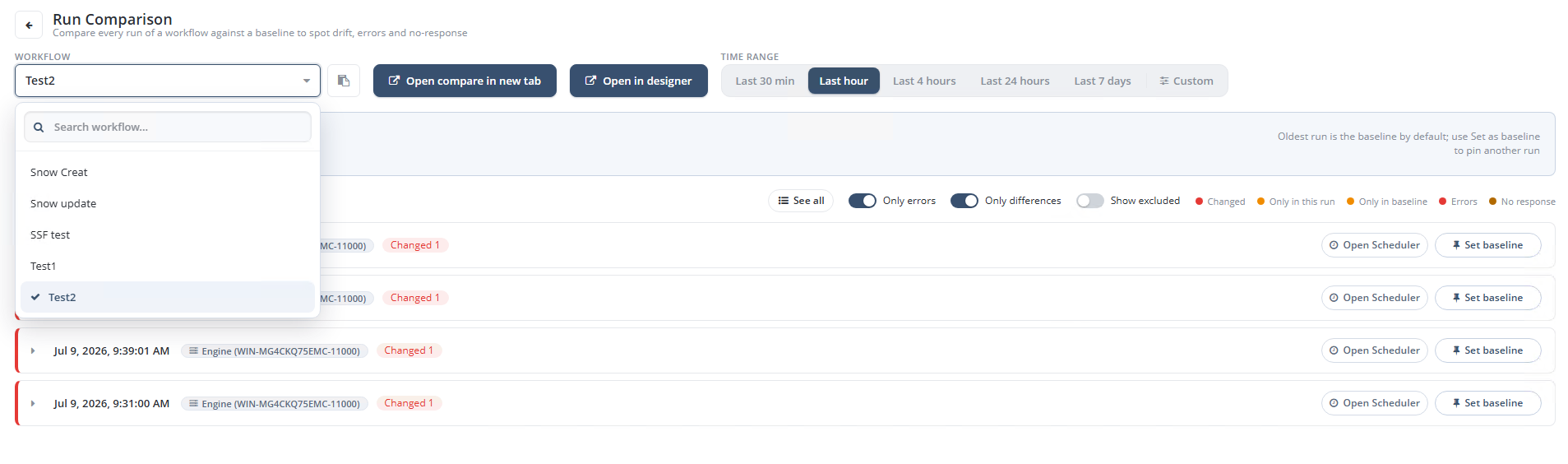
- Workflow—A dropdown to select or search for the workflow to compare. Use the search field to filter the list.
- Copy Icon-Copies the workflow name to the clipboard.
- Open compare in new tab—Opens the current comparison in a new browser tab.
- Open in Designer—Opens the workflow in the Workflow Designer in a new tab.
- Time Range—Same presets as Run Insights: Last 30 min (default), Last hour, Last 4 hours, Last 24 hours, Last 7 days, or Custom.
- Custom includes options to change the number of Minutes, Hours, or Days.
Setting a Baseline
By default, the oldest run in the selected time range is used as the baseline. Every other run is compared against it.
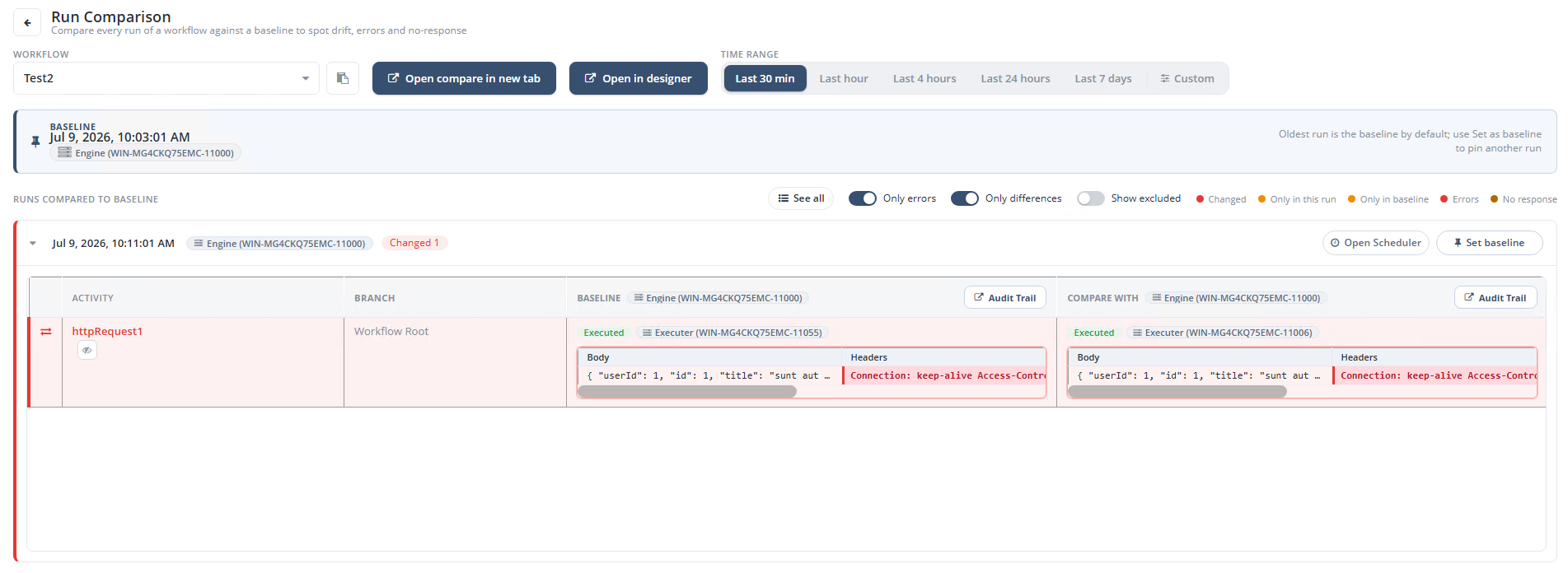
To compare against a different run instead, click Set as baseline on that run's row. The baseline banner at the top of the run list updates to show the newly pinned run.
Open Scheduler
Clicking the Open Scheduler button any row opens the Policy Actions window where you can view and edit Triggers and Schedules
Filtering Runs
Above the run list, use the following controls to narrow what's displayed:
- See all—Clears filters and shows every run.
- Only errors—Shows only runs containing an error.
- Only differences—Shows only runs that differ from the baseline.
- Show excluded—Includes runs that would otherwise be filtered out.
Each run is labeled using the following states, shown as colored dots in the legend:
| State | Meaning |
|---|---|
| Changed | The activity ran in both the baseline and this run, but produced a different result |
| Only in this run | The activity exists in this run but not in the baseline |
| Only in baseline | The activity exists in the baseline but not in this run |
| Errors | The activity errored |
| No response | The activity did not return a response |
Activities are matched by activity name and branch. The per-run instance ID is ignored, so the same activity producing the same result is reported as Identical rather than as a difference.
Viewing the Activity Diff
Click a run row to expand it and see the activity-by-activity comparison between the baseline and that run.
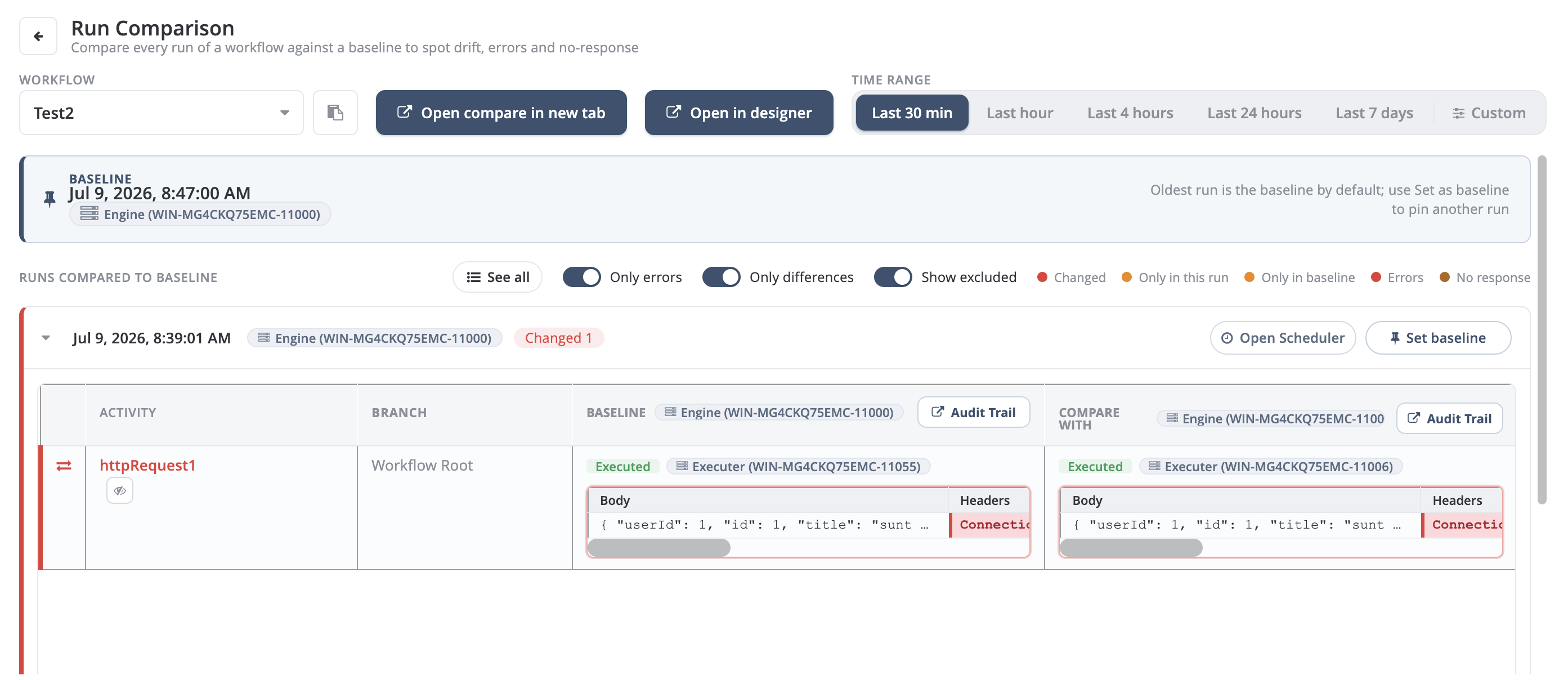
For each activity, the diff table shows:
- Activity—The activity name
- Branch—Where the activity sits in the workflow (for example, Workflow Root)
- Baseline—The activity's execution status, executing engine, and details (such as request body and headers) from the baseline run
- Compare With—The same details from the run being compared
Each side of the diff includes an Audit Trail button, which opens that specific run/event in the Audit Trail in its own new tab.
Comparing Runs from the Audit Trail
You can also start a comparison directly from a run in the Audit Trail log, without going through Run Insights first.
Select Compare Runs from the top of the Audit Trail window.
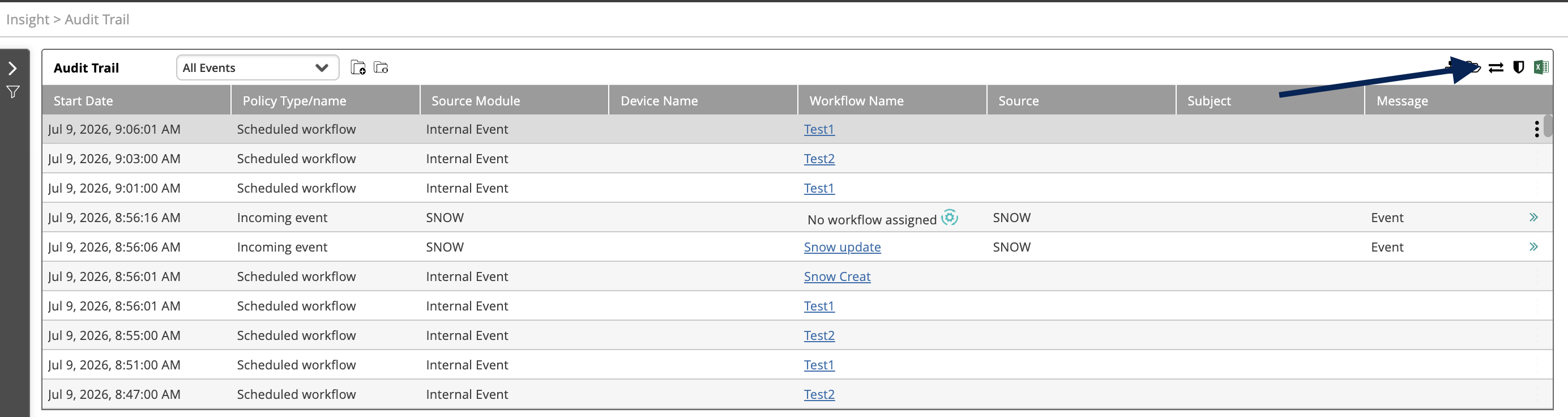
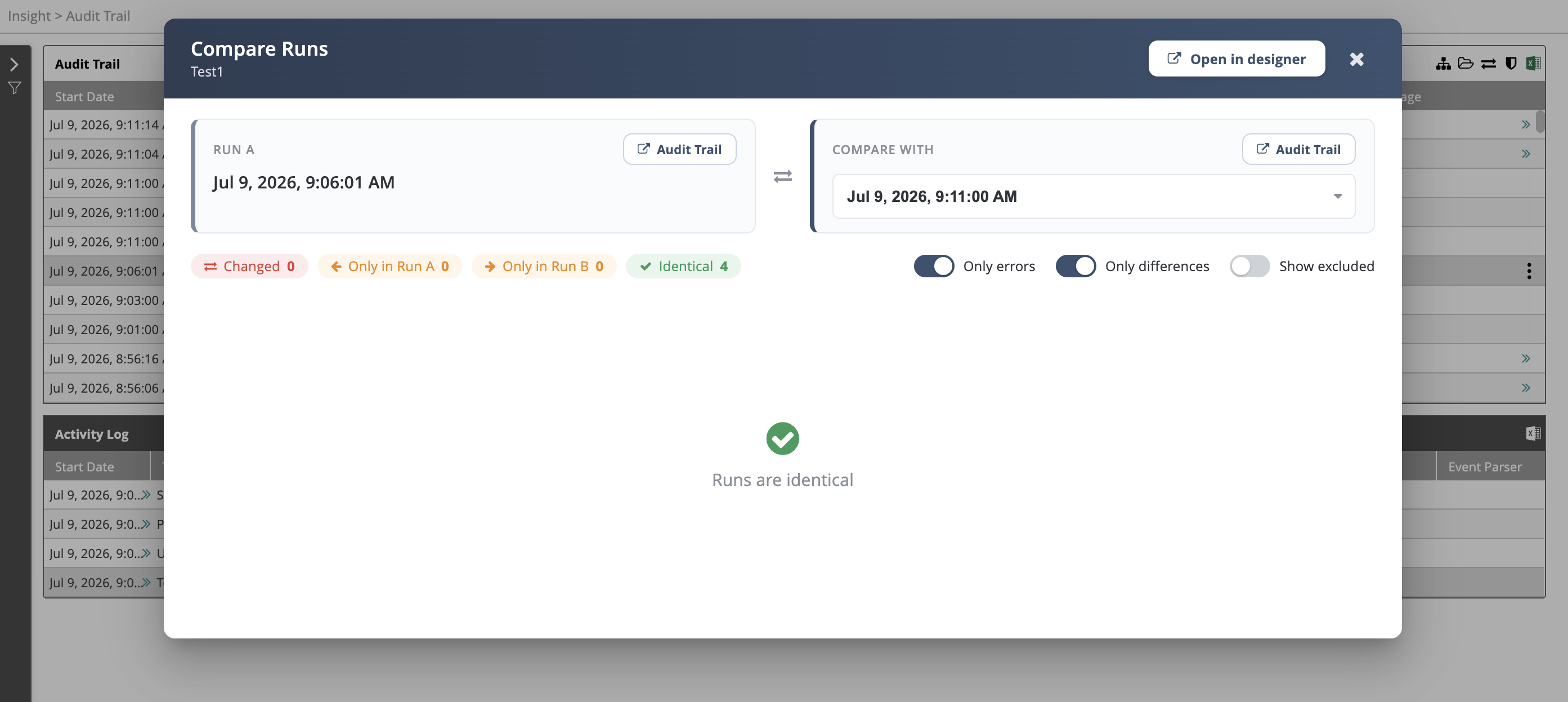
Then choose a second run to compare it against. This opens a popup showing the same activity-level diff (Changed, Only in Run A, Only in Run B, Identical) for just those two runs.
Exclude Activity from Comparison
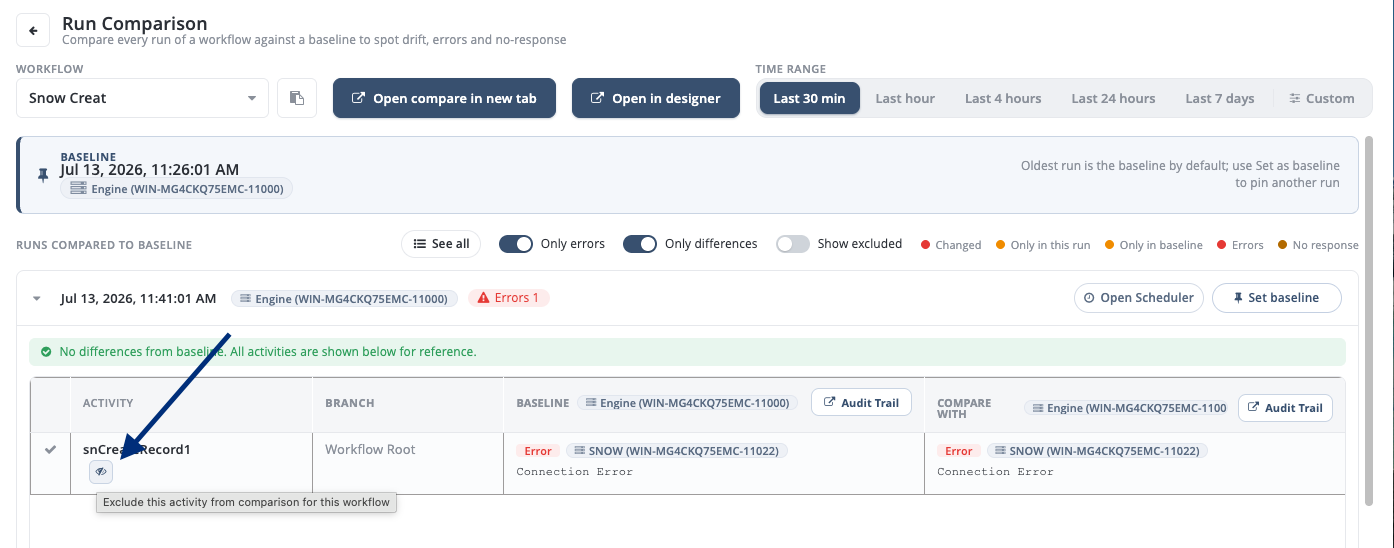
When selecting Run Comparison, expand the list of Runs Compared to Baseline. Under each Activity, select or deselect the Exclude button to remove the Activity from the comparison.